Friday, September 21, 2012

Episode 56 "iOS 6 Reply with Message" & iOS6 Update

Hi Everyone,

As with most major releases (iOS 6), they are often followed by small anomalies. Couple of things to keep an eye on when updating your device. The connect to internet through Wi-Fi was a server issue (fixed). I noticed a couple of things after the update. Some of my music didn’t sync, even though it indicated that the sync was complete. Connect your iPhone/iPad, etc to your computer. Expand the list to show your music on the device. If you have any icons that look like a clock face next to the song, sync and wait for them to change to a check mark. The last anomaly that I experienced was a notification change. My phone seemed to vibrate for no reason. When I check my settings (Settings/Sounds/New Mail), “New Mail” had changed to vibrate.

If you have a new iPhone 5, after restoring from your backup, check your mail settings. We’ve seen that your email account passwords may not have transferred from the backup. Make the changes, so you don’t lock out your exchange account (Settings/Mail, Contacts, Calendars/Exchange/Account). Remember, if you lock out your account, you will have to wait 30 minutes or put in a TARC to unlock your account.

Reply with Message
Back to iOS 6. In Episode 35, I showed you how to silence your phone call, by pressing the "Sleep/Wake" button once and pressing it twice will send it to voice mail. Now you will have a couple more options.

Did you know that you can now "Reply with Message" or "Remind Me Later"? When you get a phone call, you will see a phone icon to the right of the “slide to answer” bar. Drag it up to reveal your options. Remember that you can only “Reply with Message” to other mobile users…I know…who uses land lines anymore? The “Remind Me Later” response is based on your primary contact. If you have your work address and home address, you will see those options on the list.


Don’t forget to pass on your experiences and favorite apps on our "Tip of the Day" blog. http://rop-tipoftheday.blogspot.com/


Enjoy,

Peter

Wednesday, September 19, 2012

Episode 55: Backup & Sync

Tip of the Day Episode 55: "Backup & Sync"

Hey, it’s that time of the year when the new iOS is deployed. Remember to backup your device before your start your update. Oh…by the way, iOS 6 will ask for 2.5GB of free space before it will start the download from your device and plan on about 1-1.5 hour for the update.

Sync over Wi-Fi
Did you know that you can backup/sync your iOS device over your wifi network at home? With iTunes running on your computer and your iPhone/iPad plugged into a power source (supplied power adapter or docking station), your device will automatically sync to your computer over your network.

From iTunes, select your device and set your preference to Sync your device over Wi-Fi.


Remember, if you backup to your computer, you should have some mechanism in place for backing up your hard drive (external hard drive,Time Machine, Carbonite, etc).

Peter Boots

Friday, August 31, 2012

Episode 54: Just checking my email

Hi Everyone,

I’m going to revisit Episode 34 “Smartphone Keyboard Tips” and add a couple tips for emailing in today’s TOD.

Scrolling to the top:
Back in episode 34, I told you when scrolling through an article or surfing on the web and you what to get back to the top. Just tap the top of the screen (status bar area) on your iPhone to quickly get back to the top of the page. This works with your inbox as well. Next time your scrolling through your inbox (only 57 more emails to get through) and want to get back to the top of the list, try tapping on the line between the black status bar and the grey inbox (Fig 1.01 RED arrow) to quickly scroll back to the top.

What are those icons:
If you have a arrow that curves back to the left, it means you replied to an email. If you forward the email, it will show an arrow that points to the right (Fig 1.01 Red Circle). Some of you asked, what is the box with the arrow over it (Fig 1.02 Blue arrow)? That’s an archive icon for imap accounts (Google). If you select this, it will put your email in an “All Mail” folder of your Google account. From Mailboxes, go to Accounts, Gmail and look for the “All Mail” folder (looks like the icon w/o the arrow). What to turn it off, go to your email setting, select Gmail and turn off “Archive Messages”.


Hope this tip helps,

Friday, July 27, 2012

Episode 53: Picture That

Hi Everyone,

I know sometimes we forget the simple stuff. You know …is it left to loosen…i before e, expect after ???,  how calculate the circumference of a circle…logarithmic differentiation, you know…the simple stuff. Here’s a couple of tips when sending photos.

Sending Photos:
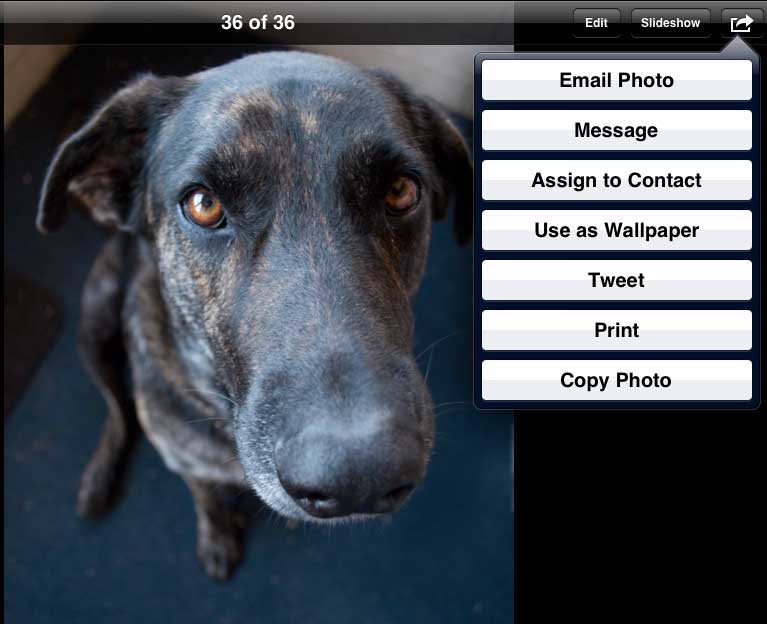
Everyone knows how to send photos from your iPhones & iPads. You select the photo and click on  and then select Email. You can also select  and then choose up to 5 photos to email (review Episode 47 when sending multiple groups).

Here’s the one we always forget. Okay, you are in a middle of an email conversation, replying back and forth and they ask to send a photo…there’s no attach item. Oh, that’s right, go to your photos. Find the photo you want to send. Select and hold the photo to copy. Go to your email and paste it into the email.

App of the week: Here’s an app for your iPad. You have world clocks for your iPhone, but they left that out on your iPad. Try “World Clock Free”. This is a free app that will let you create 4 time zones.

Archived Tips: http://rop-tipoftheday.blogspot.com/


Hope this tip helps,

Thursday, July 19, 2012

Episode 52: I would like to open a tab

Hi Everyone,

I created a blog spot to store some of the “Tips of the Day” outside of our domain. This will make it easier for most of you (not on our sdcoe domain) to find older tips of the day. Go to http://rop-tipoftheday.blogspot.com/. Now that I’m looking at them outside of my email, some of the tips are too long. Sorry, I’ll try to keep future tips short and to the point.

Open in new tab:
Have you done a web search on your mobile device and you want to keep the results window open. Try click and hold on the link to open in new tab.

Floating Keyboard:
I’ve noticed on a couple of iPads in our group that your keyboard was floating on the screen (slightly off the bottom). Did you know that you can undock your keyboard and move it up and down on the screen or split it into two(works better in a portrait and type with your thumbs)? Click and hold on the keyboard icon (lower right), to dock/split or if you are another person wondering why your keyboard is so high on the screen, select dock.

App of the week: For those aspiring engineers, try Bridge Constructor (on sale $0.99). Building a bridge for a car is easy, try making it strong enough to hold the trucks. Hours of fun for those of us who think pocket protectors serve a function. LOL

Hope you enjoy these tips. Don’t forget, if you have a great tip or app, pass it on.

Thursday, July 5, 2012

Episode 51: Can you please unlock my account.

Hi Everyone,

Okay, it’s that time of the year for some of you and you received the message, “Your password is about to expire” on your Exchange accounts. You reset your password on your computer and now your account is locked out. Now you have to call the help desk to reset your account. Oh, by the way, you will also see a TARC for the account reset. Which brings us to today’s tip of the day.

Resetting your Exchange account
Did you know that if you have your Exchange email on your mobile devices and you don’t reset your password on your mobile devices you will lock out your Exchange account. You can avoid this by doing a couple of things before your reset your password on your computer. Make sure that  you have all of your mobile devices (iPhone, smart phone, iPad, etc) before resetting your password. There are several options at this point, depending on your device. You can turn off “Push” service, put your device in “Airplane Mode” or bring up the account and delete the password (DON’T delete the account). I personally bring up the account and delete that password on my iPhone\iPad before I change my password on my computer.

On iPhones and iPad, go to Settings\Mail, Contacts, Calendars\Select your Exchange Account\Account.

Now, change your password on your computer and then change them on your mobile devices. Don’t forget if you check your email on your laptop to change it as well.

I must be going blind?
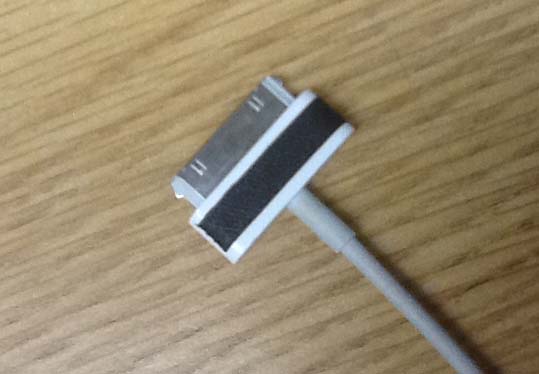
I hope I’m not the only one struggling with this problem. I know that my doctor said to wear my glasses to read, but to plug in my charger? Okay, raise your virtual hand if you can’t see the little icon on your cable to charge for your iPhone/iPad. I keep my charging cable on my night stand and in low light, I can’t see which side is up. Try putting a piece of tape over the icon to help see and feel the correct side of the plug.


Sent from my iPhone/iPad
Here’s an old “Tip of the Day” for you. I still see quite a few “Sent from my iPhone/iPads out there. Did you know that you can create a signature on your iPhone/iPad? Go to Settings/Mail, Contacts, Calendars/Signature to create a signature for your email. Now when you send an email, it will automatically add the signature to the end of your email.

App of the day: MagicPlan
Looking for an app to layout your floor plan, try MagicPlan (free). It uses your iPhone/iPad’s camera to create a floor plan. Just aim at the corners and it builds your room with just a few clicks. I’m still playing with the app, so let me know how it works for you.

Hope you enjoy these tips. Don’t forget, if you have a great tip or app, pass it on.

Monday, June 25, 2012

Episode 50: Can't find my phone

Hi Everyone,

I know that we never misplace things in life and definitely not an iPhone. Did you know that there are tools to help you find your iPhone and tools that you should consider to help protect your iPhones/iPads.

Where did I put the phone?
“Find My iPhone” is a service that you can use to help find your iPhone/iPad. Everyone should have “iCloud” setup on your mobile device. All you have to do is enable “Find My iPhone/iPad” to launch this free service. If you have multiple devices (iPhone/iPad) and you misplaced your phone, just launch “Find iPhone” (available at the app store if it’s not on your device) to send a message, see where you placed it or even lock and remote wipe the phone. From a computer, go to icloud.com and login with your Apple ID and password.

The great part is that even if you had set your phone to vibrate or volume to low, the sound it plays is loud. If in the event that your phone is stolen, you can remote lock and remote wipe your phone, protecting your information on your phone. Which brings us to my next tip security.

Are you protecting your information?
If you don’t protect your phone with a passcode, you can’t protect the information, photos, videos, etc on your iPhone/iPad. If you are like me and don’t have a passcode to open your phone, at least enable restrictions and passcode protect location services.

Go to Settings\General\Restrictions\Enable Restrictions (you’ll have to create a passcode here…don’t forget this passcode) \Location\ and select “Don’t Allow Changes”

This will help keep location services locked on your iPhone/iPad. If your device is stolen and turned off. You can still send a lock or remote wipe command to the phone (Find iPhone app or iCoud). As soon as it is turned on, it will lock down or wipe the info (depending on the command you sent). If it was a wifi device like an iPad, the same thing will apply as soon as it connects to the internet. This is the only drawback of not protecting a wifi only device with an opening passcode. Until the device connects to the internet, they have access to your personal info on that device.

Take a snapshot (press the On\Off button and Home button and the same time) of your “About” screen to store your serial number and IMEI number (you’ll have to scroll up to see both on the screen at the same time and make sure to upload the photo to your computer or cloud). The IMEI number is what your service provided will need to blacklist your device from their network.

Turn your printer into an AirPrinter
Okay, you have plenty of regular printers at home and no AirPrinter to print from your iPad/iPhone. Sure there are apps out there that will print from the app, but you want to print from your web browser or your document that you’re reading. Well, if you have a wifi network at home and a shared printer on your network, you can turn your printer into an AirPrinter. Go to Netputing and download their AirPrint Activator. It works on my Mac network. If you have PC’s at home, let me know if the universal driver works on your network.

Our favorite app of the day: Temple Run Brave ($0.99) It’s like the free version of Temple Run, but based on the movie Brave. Lots of fun…I see Susie playing it all the time…LOL.

Hope you enjoy these tips. Don’t forget, if you have a great tip or app, pass it on.